ChatGPT Dots voice calls: how to call your dot
Call your dot from the phone button in its conversation, on a computer or a phone. What a call can do, what hanging up stops, and fixes when it won't connect.
Last verified
On this page
To call your dot, open its conversation and click the phone button at the top right. You talk, and your dot answers out loud.
You need a dot (create one first) and a microphone ChatGPT is allowed to use. Calls work in a desktop browser, the desktop app and the ChatGPT phone app, and not in a phone's web browser.
#Call your dot on a computer
A call is a small card that sits on top of your dot's conversation. These six steps follow one call from start to finish.
Call your dot on a computer
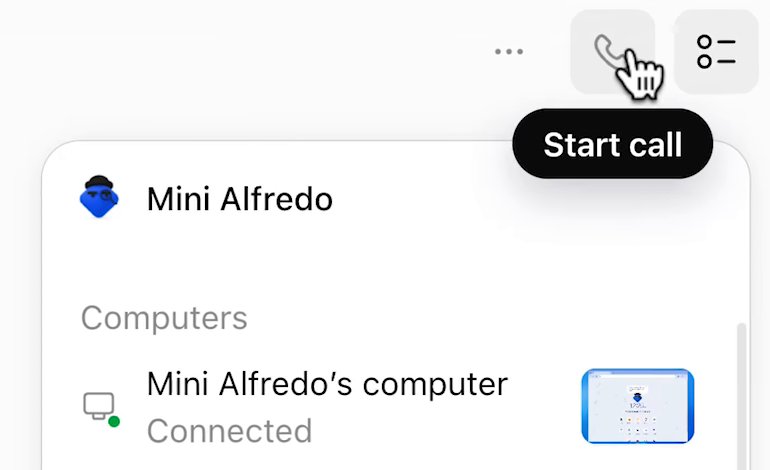
Image: The AI Advantage 1Click the phone button
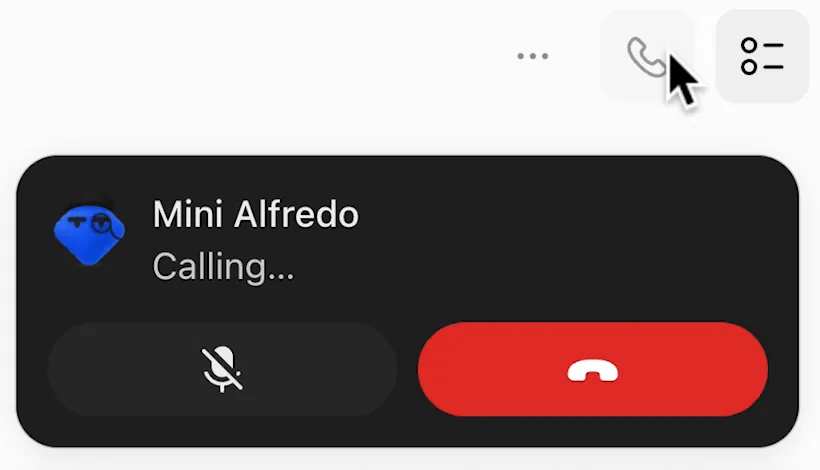
Open your dot's conversation. The phone sits at the top right, and its tooltip reads Start call. The Call button in your dot's profile does the same thing.
- Calling... means it's ringing.
- Mute your microphone.
- Hang up.
Image: The AI Advantage 2Wait while it says Calling...
A dark card appears with your dot's name and Calling.... A call that works connects within a few seconds.
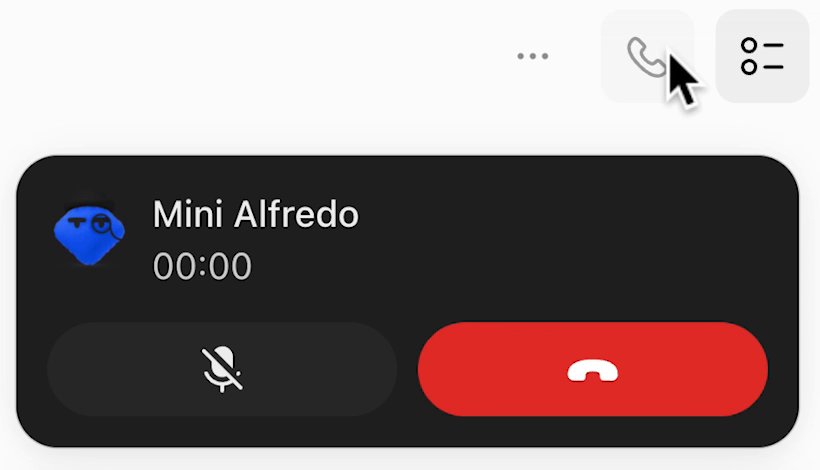
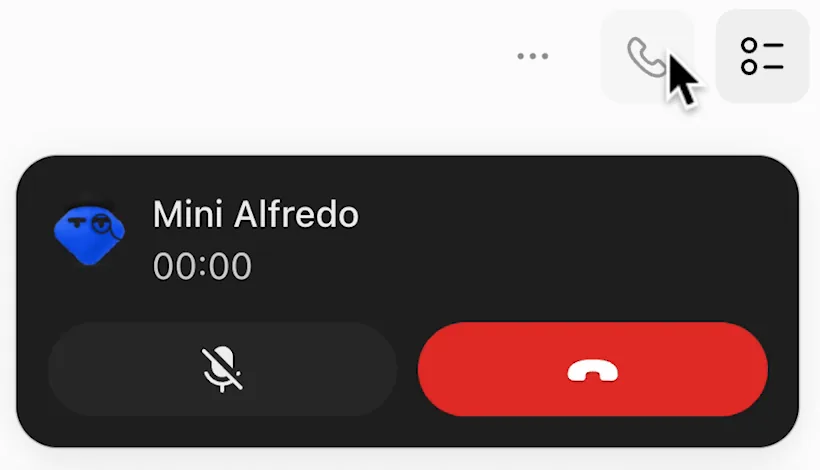
Image: The AI Advantage 3Talk when the timer starts
Calling... turns into a timer. Your dot can hear you now. Say what you want the way you'd say it to a colleague.
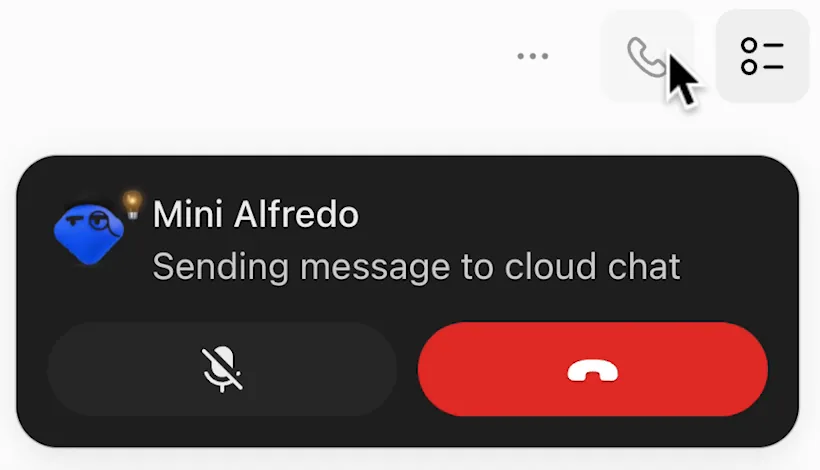
- What your dot is doing right now.
Image: The AI Advantage 4Watch the line under its name
While your dot works on what you said, the timer gives way to what it's doing: Thinking, or a step such as Sending message to cloud chat. The conversation underneath stays usable, so type anything that has to be exact, such as a link or a name.
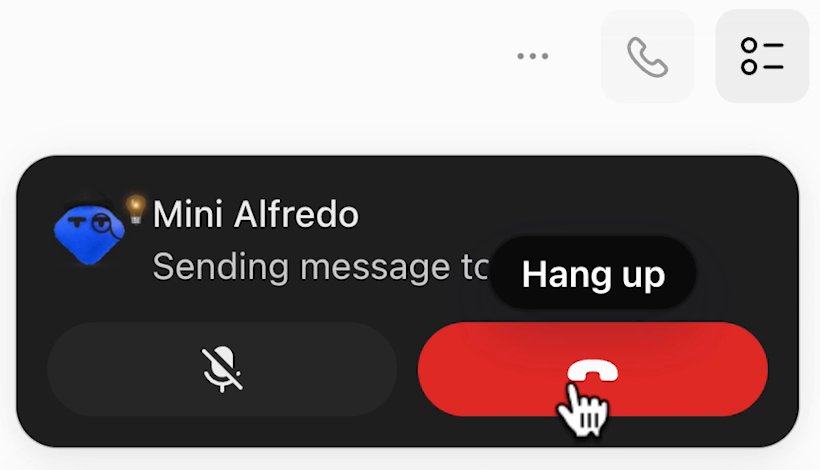
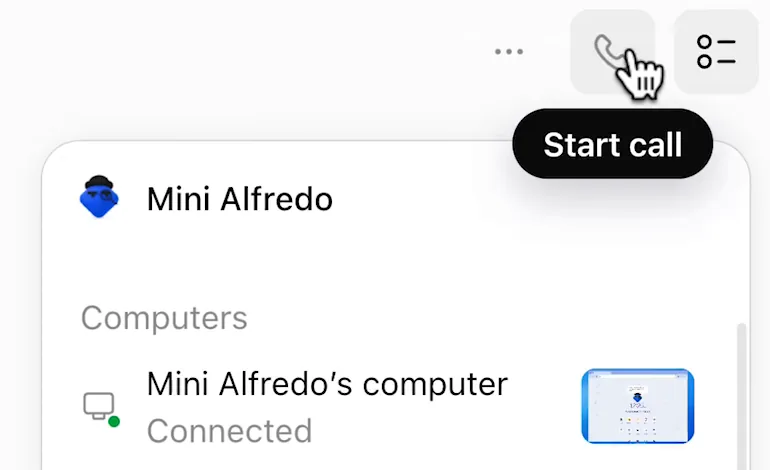
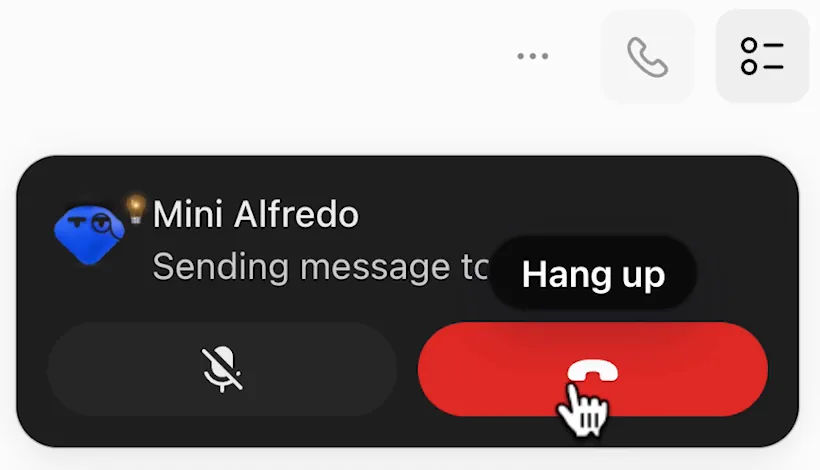
Image: The AI Advantage 5Click the red button to hang up
Its tooltip reads Hang up.
- The call, logged with its length.
- The write-up. What you said out loud isn't copied into the conversation, so this is your record.
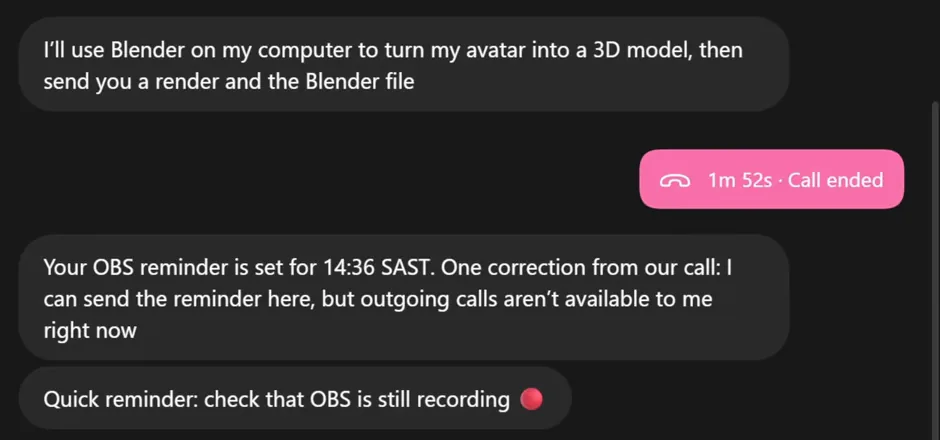
Image: Leon van Zyl 6Read what the call left behind
The card disappears. Your conversation gains a marker with the call's length, and under it your dot writes up what you agreed.
#Call from your phone
On a phone the steps are the same and the call fills the screen. Open the ChatGPT app's menu, tap your dot (it's the first entry), then tap the phone button at the top right of the conversation.
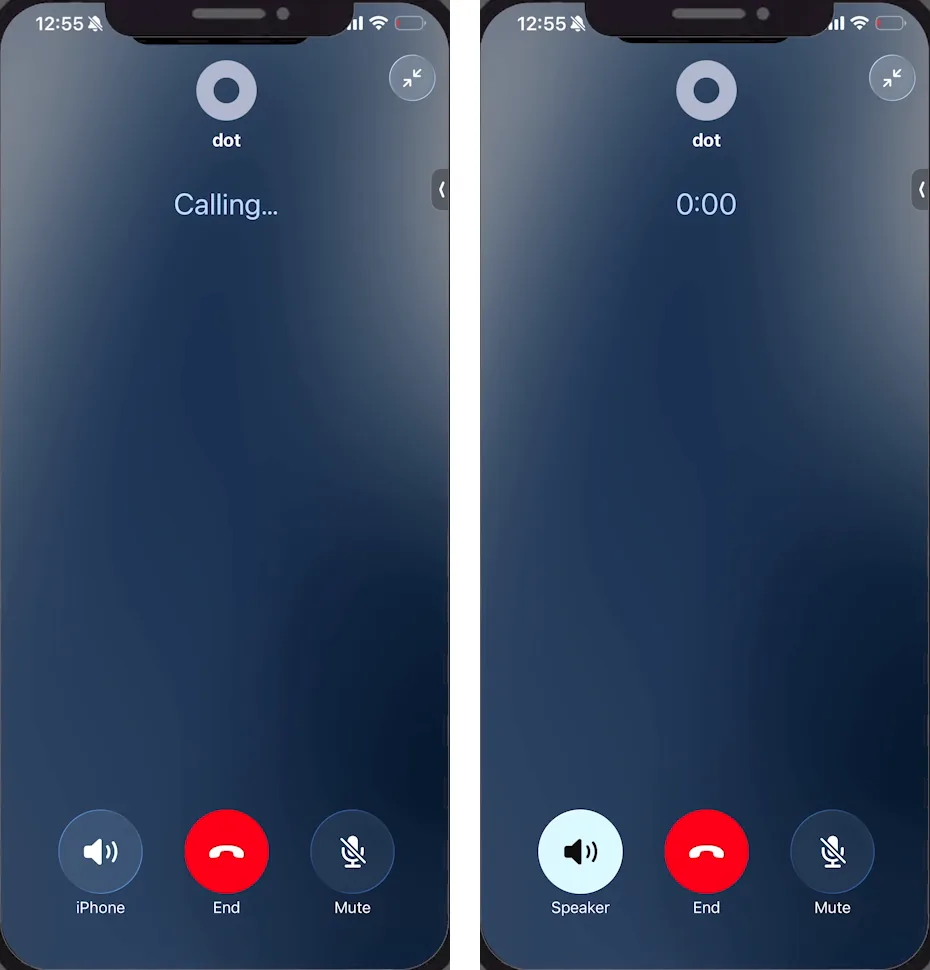
- Ringing: Calling...
- Connected: the timer. Talk now.
- The first button names where the sound is going. It reads iPhone until you switch to Speaker.
#Try a call
Now place one yourself. This practice call shows what your dot does with four things people say on a call, and what the conversation looks like after you hang up.
#What hanging up does
Hanging up ends the call. A job you handed over during it keeps running.
- To stop the job as well, tell your dot to stop, out loud before you hang up or in a message afterwards.
- A call works from part of your conversation. For the detail of a running task, open it under Recent activity in your dot's profile.
#If the call won't connect
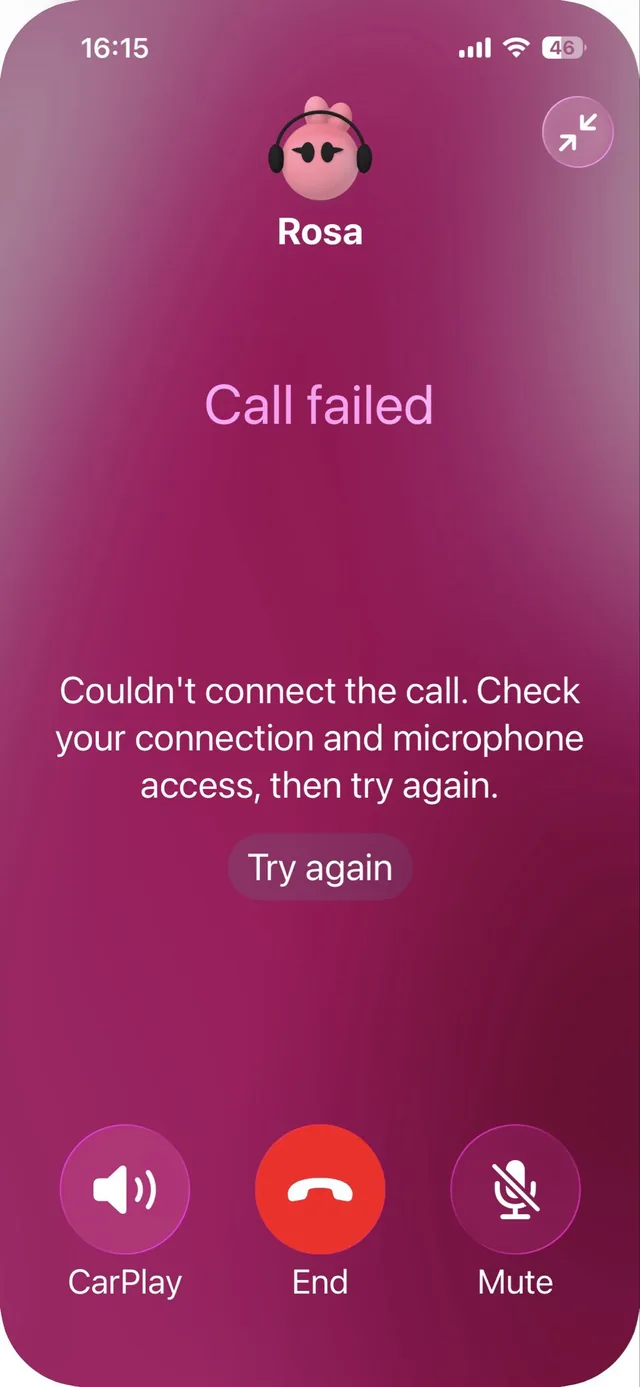
Sometimes Calling... never turns into a timer. On a phone the screen changes to Call failed. On a computer a red banner reads "Couldn't connect the call. Please try again".
Try these in order:
- Hang up and call again. If it still says Calling... after ten seconds or so, that call isn't going to connect. A second try often does.
- Check microphone access. The first call asks for it. If you clicked Don't Allow, turn the microphone on for ChatGPT in your system or browser settings.
- Stop dictating. The microphone in the message box is Dictate, which types what you say. While it's recording, the phone button is greyed out.
- Call from another device. If the phone app fails, try a computer, and the other way round.
- Type instead. Messages don't depend on the call.
#Check you've got it
One question before you move on.
You ask your dot on a call to compare five hotels. Ten seconds later you hang up. What happens to the hotel job?
- It stops, because the call ended
- It keeps running and the answer arrives in your conversation
- It pauses until you call back
Show the answer
It keeps running and the answer arrives in your conversation
Your dot writes up what you agreed right under the Call ended marker.
Your dot writes up what you agreed right under the Call ended marker.
#Next step
You can call your dot. The last lesson covers what it remembers.
Can my dot call me at a set time?
No. You place every call. Ask your dot for a message at that time, and call it when the message arrives.
Is there a time limit on a call?
OpenAI doesn't publish one, and the call screen shows no limit. The timer just counts up.
Do calls use up my plan's usage?
Conversations with your dot don't count toward your ChatGPT usage limits, and a call is a conversation. Jobs your dot starts in Work or Codex because of a call count toward those products' limits as usual. See Dots usage limits.
- Rebuilt around the real call screens, with a practice call.
- First published.
Get the Dots cheat sheet
One page with the essentials, plus new guides as they are published. Free.
You're in. Your cheat sheet is ready. Download the PDF

Sources
9
- OpenAI docs: Message your dot (ChatGPT and voice) learn.chatgpt.com
- OpenAI docs: Meet dots learn.chatgpt.com
- OpenAI docs: Tasks and memory (what a call can see) learn.chatgpt.com
- OpenAI docs: Control your dot learn.chatgpt.com
- OpenAI Help Center: Getting started with your dot help.openai.com
- The AI Advantage on YouTube: screenshots of a call on the web youtube.com
- Leon van Zyl on YouTube: screenshot of a conversation after a call youtube.com
- Futurepedia on YouTube: screenshots of a call on an iPhone youtube.com
- Minda on X: screenshot of the Call failed screen x.com