ChatGPT Dots with GitHub: connect it and get pull requests
Connect GitHub to your dot, see the two setups it codes in and which usage each draws on, and copy three prompts that end in a pull request to review.
Last verified
On this page
Connect the GitHub plugin and your dot can read your repositories. To change code, your dot starts a Work or Codex task, on your computer or in a Codex cloud environment, and brings you a pull request to review.
#How a request becomes a pull request
Your dot doesn't write the code in the chat. It hands the job to a task that runs in one of two places, then checks the result and reports back.
Your connected computer has to stay on, with the ChatGPT app open. A Codex cloud environment keeps going with your laptop closed, once you've created it in Codex.
#Which setup does your job use?
With the two places in mind, pick the job you have. The answer tells you what to have ready and which usage it spends.
#Connect GitHub
Whichever setup you use, your dot needs the GitHub plugin to read your repositories. If you already connected GitHub to ChatGPT, Work or Codex, your dot has it and you can skip this.
- Open Plugins from the @ icon at the far left of ChatGPT and click + on the GitHub row.
- On GitHub, install and authorize the ChatGPT app.
- Select the repositories it can read. Pick specific ones, not all of them.
- Wait about five minutes, then ask your dot: "Which repositories can you read?"
The + sits at the end of the GitHub row.
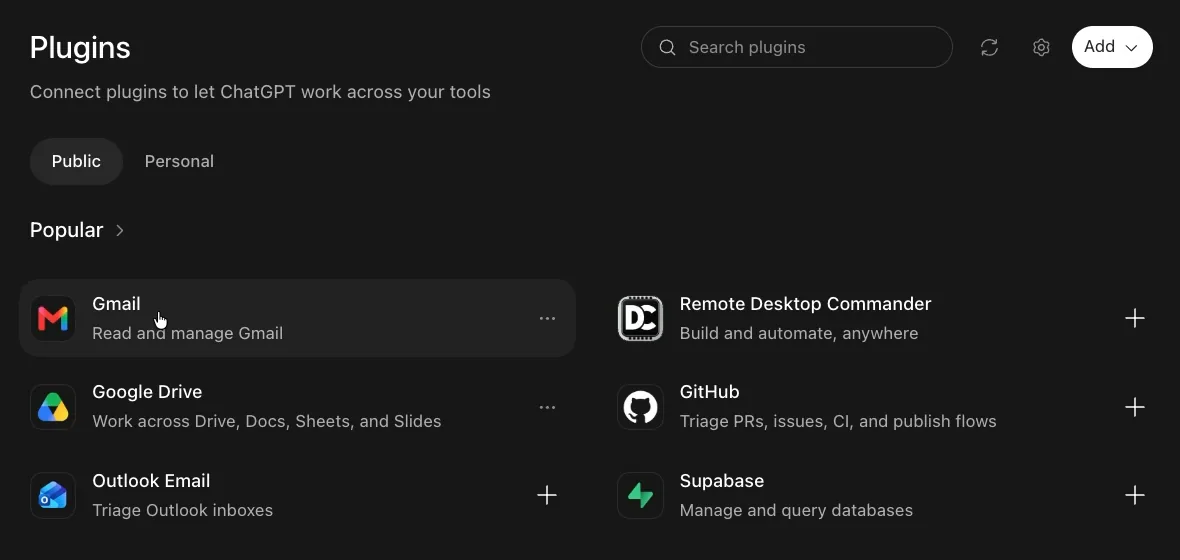
Your dot looks through connected repositories without being asked, so choose them on purpose. You can change the list later in the app's settings on GitHub.
#Three recipes that end in a pull request
Each recipe says where the work runs. Swap in the parts in [BRACKETS], and keep the last line: it leaves the merge with you.
Fix an issue and open a draft pull request
For a bug with a clear report. It runs in the cloud, so you can close your laptop.
Use my [ENVIRONMENT NAME] Codex cloud environment. Investigate issue #[NUMBER] in [OWNER/REPO], reproduce it, and prepare a fix with tests. Open a draft pull request and send me the link, with a summary of what you changed and what you couldn't verify. Don't merge anything.Progress notes as it works, such as "The code is updated and the tests are passing. I'm preparing the pull requests." Then a link to the pull request.
This is what done looks like. The pull requests are opened under the dot's own name, and each one waits for a person.
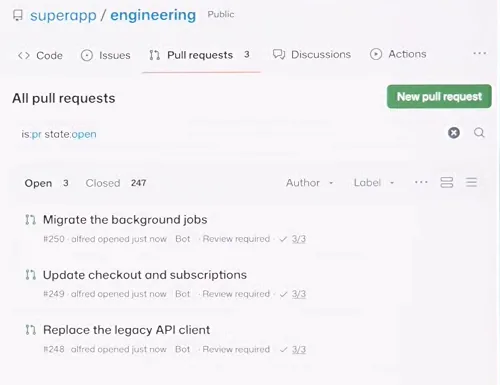
- Opened by the dot, here named alfred, and tagged Bot.
- Review required: the merge is yours.
For code that only lives on your machine, have your dot find the problems first and fix them after you've read the list.
Find and fix bugs in an app on your computer
Open [THE APP: a folder or a local address] on my computer and test it. Check the layout at different screen sizes and the main flows. Bring me a prioritized list of bugs with what you'd change. Don't change any code until I say so.A numbered list of bugs and "Want me to fix these issues and rerun the checks?" Say yes, and it fixes them with the original files backed up, then tells you what it verified.
Once your dot is in Slack, it can pick up bug reports where your team posts them.
Turn bug reports in a channel into pull requests
Watch #[CHANNEL] in Slack for bug reports about [OWNER/REPO]. When one comes in, investigate it, prepare a fix with tests in my [ENVIRONMENT NAME] Codex cloud environment, and reply in the thread with a summary and the pull request link. Don't merge anything. Confirm what you've set up.A reply in the Slack thread with what it changed and a link such as "PR #10", ready for review.
#What your dot can and can't do with GitHub
The table below sorts the jobs by what does them.
| Job | What does it |
|---|---|
| Find and read code, READMEs and docs | The GitHub plugin, in the repositories you selected |
| Edit code, run tests, open a pull request | A Work or Codex task your dot starts |
| Check on a task and send it follow-ups | Your dot, from your conversation |
| Merge | You. Tell your dot not to, and set a rule |
| Read a repository you didn't select | Nothing. The choice is made on GitHub |
#Fixes
If something's off, find what you see in the left column.
| What you see | What to do |
|---|---|
| A repository doesn't show up | Wait five minutes. Then check the ChatGPT app is installed for the right account or organization on GitHub and can reach that repository |
| Your organization blocks the app | An owner has to approve it. With an IP allow list, OpenAI's address ranges have to be added |
| Your dot mentions a private repository you never showed it | GitHub was already connected to ChatGPT. Narrow the repository list on GitHub, or uninstall the plugin |
| Your Codex usage drops after a simple request | Your dot started a task. Add a custom rule, "starting a Work or Codex task", set to Ask before taking action: the steps |
| It says it's working and nothing arrives | Open your dot's profile and click the task under Recent activity to see where it stands |
#Check you've got it
One question before you go.
Your laptop will be shut all afternoon. Which request can still end in a pull request?
- "Fix the bug in the repo on my Mac."A task on your computer needs it on, with the ChatGPT app open.
- "Use my Codex cloud environment to fix issue #212."A cloud environment runs without your computer.
- "Read the repo and tell me where the bug is."The plugin can read it and your dot can answer, but reading doesn't change code.
Show the answer
"Use my Codex cloud environment to fix issue #212." A cloud environment runs without your computer.
Does working on a repository use my Codex usage?
Tasks your dot starts or steers in Work or Codex count toward those limits as usual. Talking with your dot doesn't count toward your ChatGPT limits. What counts toward which limit.
Does OpenAI train on the code my dot reads?
On Business, Enterprise and Edu plans, not by default. On personal plans, including Pro, it follows your Improve the model for everyone setting. What your dot can see.
- Rebuilt as a recipe page with a drawing of the two setups, a chooser and three recipes.
- First published.
Get the Dots cheat sheet
One page with the essentials, plus new guides as they are published. Free.
You're in. Your cheat sheet is ready. Download the PDF

Sources
9
- OpenAI Help Center: Connecting GitHub to ChatGPT help.openai.com
- OpenAI docs: Connect computers and apps to your dot learn.chatgpt.com
- OpenAI docs: Tasks and memory (task types, Codex cloud environments) learn.chatgpt.com
- OpenAI Help Center: Getting started with your dot help.openai.com
- OpenAI: Introducing dots (pull request example, usage rule) openai.com
- OpenAI Help Center: Dots privacy, security, and safety FAQs help.openai.com
- OpenAI DevDay 2026 keynote: screenshot of pull requests opened by a dot youtube.com
- Skill Leap AI on YouTube: screenshot of the Plugins page youtube.com
- Taha El Harti on YouTube: a dot finding and fixing bugs in a local app youtube.com