Using your dot
How to give your ChatGPT dot a job, a schedule, and a stop
Type a four-part brief into your dot's conversation, ask for a schedule in plain words, check on the work in Recent activity, and stop it three ways.
Last verified
On this page
You give your dot a job by typing it into the one conversation you have with it. Say what to look after, where to look, what still needs you and when to tell you, and your dot keeps the job going after you close the tab.
#What a good brief says
A brief is four short sentences. Each one answers a question your dot would otherwise have to guess.
- Help me keep the customer newsletter on track.the job: something to look after
- Use the outline and the contributor emails I shared to track what's written, what's late and what still needs a decision.the sources: where to look
- Draft reminders for my review, but don't send them.what still needs you
- Tell me when something needs my attention.when to tell you
#Build your brief
Now write yours. Pick the starting job closest to yours and change the words; an empty part shows up as a gap in the brief.
#Hand over the job and check on it
With the brief copied, open your dot. These six steps send the job, put it on a schedule and show you where to watch it. You need a dot that's set up: create yours first.
Give your dot a job

Image: The AI Advantage 1Type the brief and send it
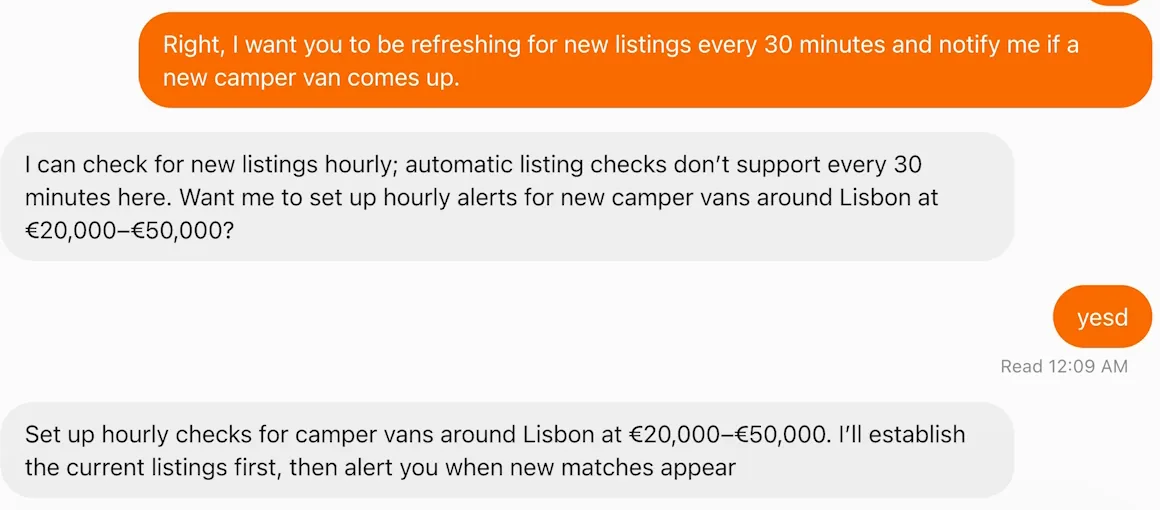
Open your dot from the sidebar. Click Send a message, paste your brief and send it. Under your message, Delivered changes to Read with a time, and your dot says the job back before it starts, often with one question.
- If your dot can't run that often, it says so and offers an interval it can do.
- The confirmation tells you what was saved. Read it.
Image: The AI Advantage 2Ask for a schedule in the same conversation
For work that has to repeat, say how often and what deserves a message. To see a run straight away, ask: "Do a quick run right now so I can see it." The schedule stays as it is.
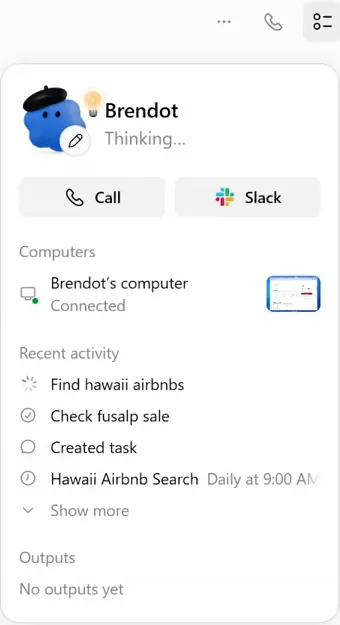
- A spinner: running now.
- A tick: finished.
- A clock: a schedule, with its timing at the right. Check it against what your dot told you.
Image: Brendan Jowett 3Open the profile to see what's running
Click the profile button at the top right of the conversation, or click your dot's picture. Recent activity lists its jobs.
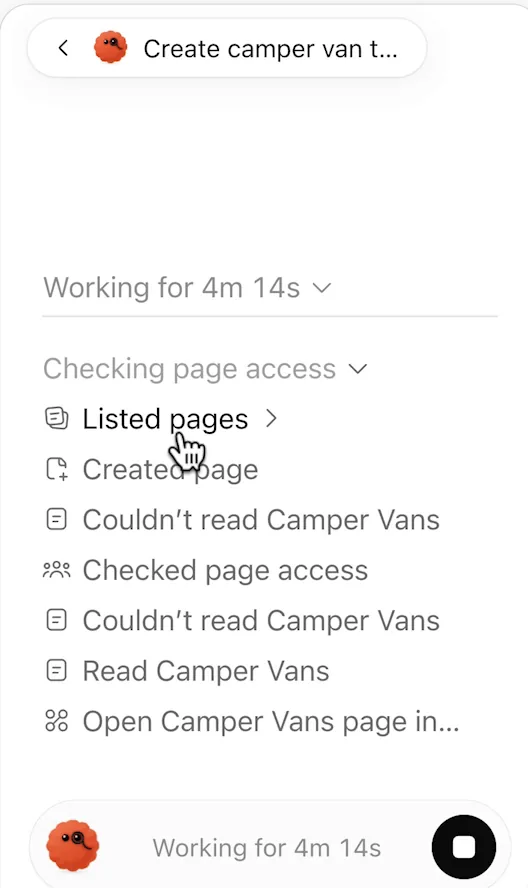
- How long this task has been going.
- Each step, including the ones that failed and were tried again.
- The round button stops this task.
Image: The AI Advantage 4Click a job to see its steps
Click any row that's running. The panel shows how long your dot has been working and every step so far.
- The clock opens this page.
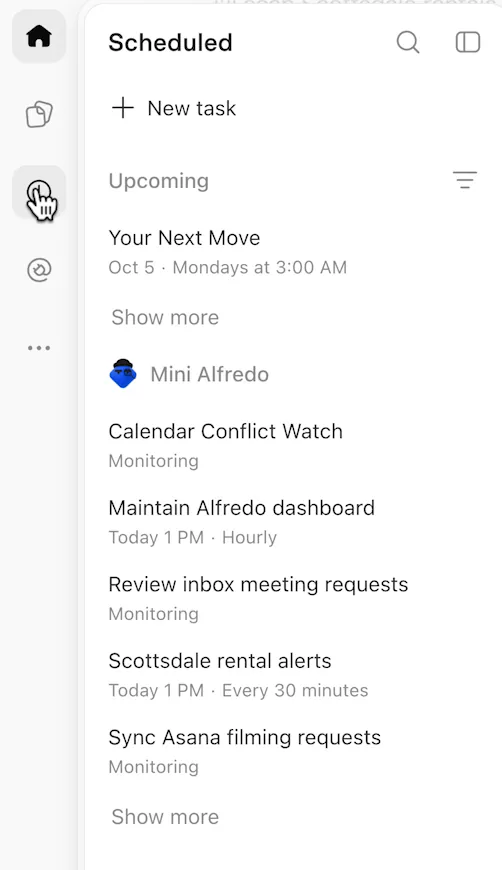
- A timed task shows its next run and how often it repeats.
- Monitoring means it's watching for something to happen, with no clock time.
Image: The AI Advantage 5Open Scheduled to see every schedule
Click the clock in ChatGPT's left rail. Your dot's schedules sit in a group under its name, below your own scheduled tasks.
- The instructions your dot wrote for itself from your brief. Read them once: this is what runs.
- How often, which day, what time, and when to stop repeating.
Image: Brendan Jowett 6Change a schedule
Point at a task, click ... and choose Edit. Or skip the dialog and tell your dot: "Make the check daily at 8 instead."

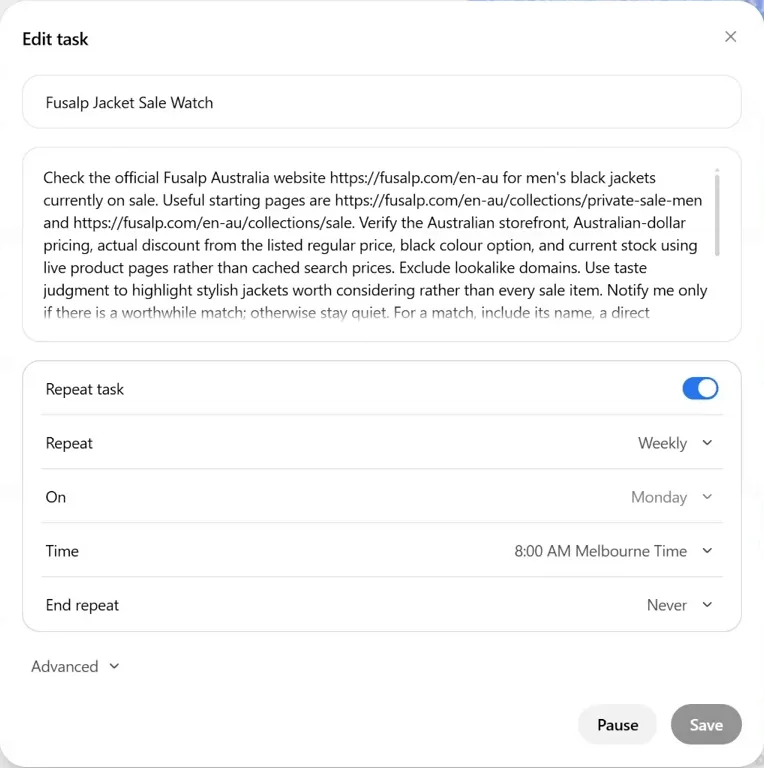
Each run of a schedule reports into the same conversation with your dot. A run with nothing worth telling you stays quiet if your brief said so.
#Tell what your dot is doing
Between reports, the line under your dot's name is the quickest sign of what it's up to.
| The status line reads | Your dot is |
|---|---|
| Thinking... | Working, or about to |
| A step in its own words, such as "Looking for recent posts" or "Writing the pricing summary" | In the middle of a job |
| Active, or "Active 7 minutes ago" | Idle |
| Paused | Stopped until you resume it |
Thinking... shows a lot, including when not much is happening. Recent activity is the surer place to look, and you can always ask: "Are you still working on it?"
#Where the work runs
Some of that activity happens outside the conversation. Small jobs run right in it; for a bigger one, your dot starts a separate task and drops a chip with the task's title into the chat.
- The chip is a link. Click it to open the task, an ordinary Work or Codex thread where each prompt is labelled Sent by with your dot's name.
- The same title appears in Recent activity, which is where you stop it.
- Work and Codex tasks count toward those products' usage limits. Talking with your dot doesn't count toward your ChatGPT limits. Usage limits has the detail.
#Pause, stop a task, or cancel a schedule
That leaves three kinds of work that can be running at once, and each has its own off switch. Try all three here before you need them.
#Pause your dot
On the real screen, pause is the one without a button. Open the profile and point at the status line under your dot's name: it turns into Pause and the name. Click it.
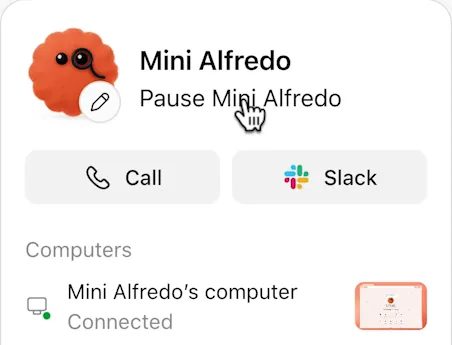
A Paused pill replaces the Call and Slack buttons, and another replaces the message box, so you can't write to a paused dot. To carry on, click the Paused pill in the profile. It reads Resuming... for a few seconds, then the buttons come back.
The other two controls are quicker to find:
- Stop one task. Type "stop" in the conversation, or open the task from Recent activity and click the round stop button at the bottom.
- Cancel a schedule. On the Scheduled page, point at the task, click ... and choose Delete. The same menu has Pause and Run now. You can also ask: "Cancel the Monday check, then list what's still scheduled."
#Check yourself
One question before you hand over a real job.
A job is running and you close the ChatGPT tab. What happens to the job?
- It stops, like a normal chat would
- It carries on, and the result is waiting when you come back
- It pauses until you open the tab again
Show the answer
It carries on, and the result is waiting when you come back
Your dot works on its own computer in the cloud, so closing the tab or ending a call doesn't end the work. To end it, pause your dot, stop the task or cancel the schedule.
Your dot works on its own computer in the cloud, so closing the tab or ending a call doesn't end the work. To end it, pause your dot, stop the task or cancel the schedule.
How is a dot different from ChatGPT's scheduled tasks?
A scheduled task runs the same prompt at a fixed time. A dot can hold a whole job: it decides when to follow up, takes new information from you without starting over, and brings you the decisions. A dot can also save fixed schedules, and those appear on the same Scheduled page. Dots vs Codex, Work and scheduled tasks compares them.
Can my dot act when something happens, with no fixed time?
Yes, where the connected app supports it. Ask for it in the brief: "When a new bug report is posted in the #product-feedback channel, look into it and tell me what you find." Connecting an app doesn't start any watching by itself. On the Scheduled page these tasks read Monitoring.
Can I give my dot a second job while the first one runs?
Yes. Send it in the same conversation. Your dot keeps both going.
- Rebuilt as a lesson with the real screens, a brief builder and a stop simulator.
- First published.
Get the Dots cheat sheet
One page with the essentials, plus new guides as they are published. Free.
You're in. Your cheat sheet is ready. Download the PDF

Sources
8
- OpenAI docs: Tasks and memory learn.chatgpt.com
- OpenAI docs: Control your dot learn.chatgpt.com
- OpenAI docs: Get started with your dot learn.chatgpt.com
- OpenAI Help Center: Getting started with your dot help.openai.com
- OpenAI: Introducing dots openai.com
- The AI Advantage on YouTube: screenshots of a job, a schedule request, a task's steps, pausing and the Scheduled menu youtube.com
- The AI Advantage on YouTube: screenshot of the Scheduled page youtube.com
- Brendan Jowett on YouTube: screenshots of Recent activity and the Edit task dialog youtube.com