ChatGPT Dots with Google Drive: connect it and hand over files
Connect Google Drive to your dot, check it can read your Docs, Sheets and Slides, see when it edits or shares without asking, and copy three prompts.
Last verified
On this page
Connect the Google Drive plugin once and your dot can find and read your Docs, Sheets and Slides, and update them when you ask. Reading goes ahead. Editing depends on the permission level you set, and sharing a file always waits for you.
#What one connection covers
One plugin covers every kind of file, and your dot sees only what the Google account you pick can open.
A personal account doesn't reach files that only your work account can open, so connect the account that already has them.
#Connect Drive and check it worked
If you chose Google when you created your dot, Drive is probably connected already. Either way, these three steps end with proof.
- Click + in the box where you message your dot. If Google Drive is under Plugins, it's connected.
- If it isn't there, open the Plugins page from the @ icon at the far left, find Google Drive and click +. Sign in to Google and tick Select all.
- Ask your dot to open one file you can name and quote its first line.
Find "[A DOCUMENT YOU CAN NAME]" in my Google Drive and tell me its first sentence.A working connection sounds like this: your dot says Drive is connected, then tells you what it found.
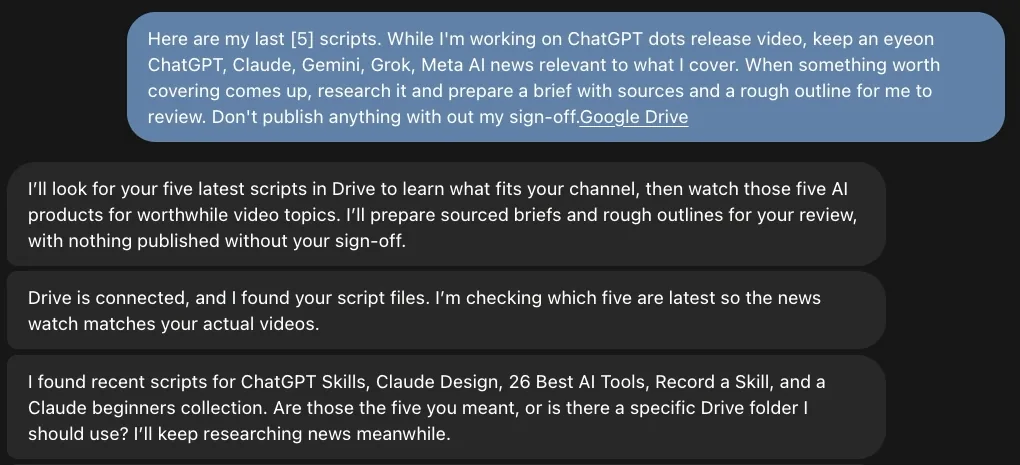
The test asks for a sentence from inside the file because finding a file's name isn't the same as reading it.
#Try it: walk a proposal update through
Now that your dot can read your files, the question is when it changes them. Pick a permission level below, press Next, and answer your dot when it asks.
To change the level for Drive, see how the four levels work.
#Three recipes for your files
Each of these is a job a dot has done with real files. Swap in the parts in [BRACKETS]. The first one is the best place to start, because the result is easy to check.
Update a weekly deck from a Sheet
Attach the deck with Add photos and files, then send this.
This is our weekly numbers deck. Every Monday, update it with the latest week from my "[SHEET NAME]" Google Sheet. Flag any metric that changed by more than 15% from the previous week on the Flags slide, with a short note on each. Do the first update right now.A message such as "Updated for the week ending September 26. The Flags slide highlights revenue +23.9% and support tickets +51.9%", with the updated deck attached.
Here is the Flags slide from that first run. Look at the last line: the dot says which sheet and which week the numbers came from.
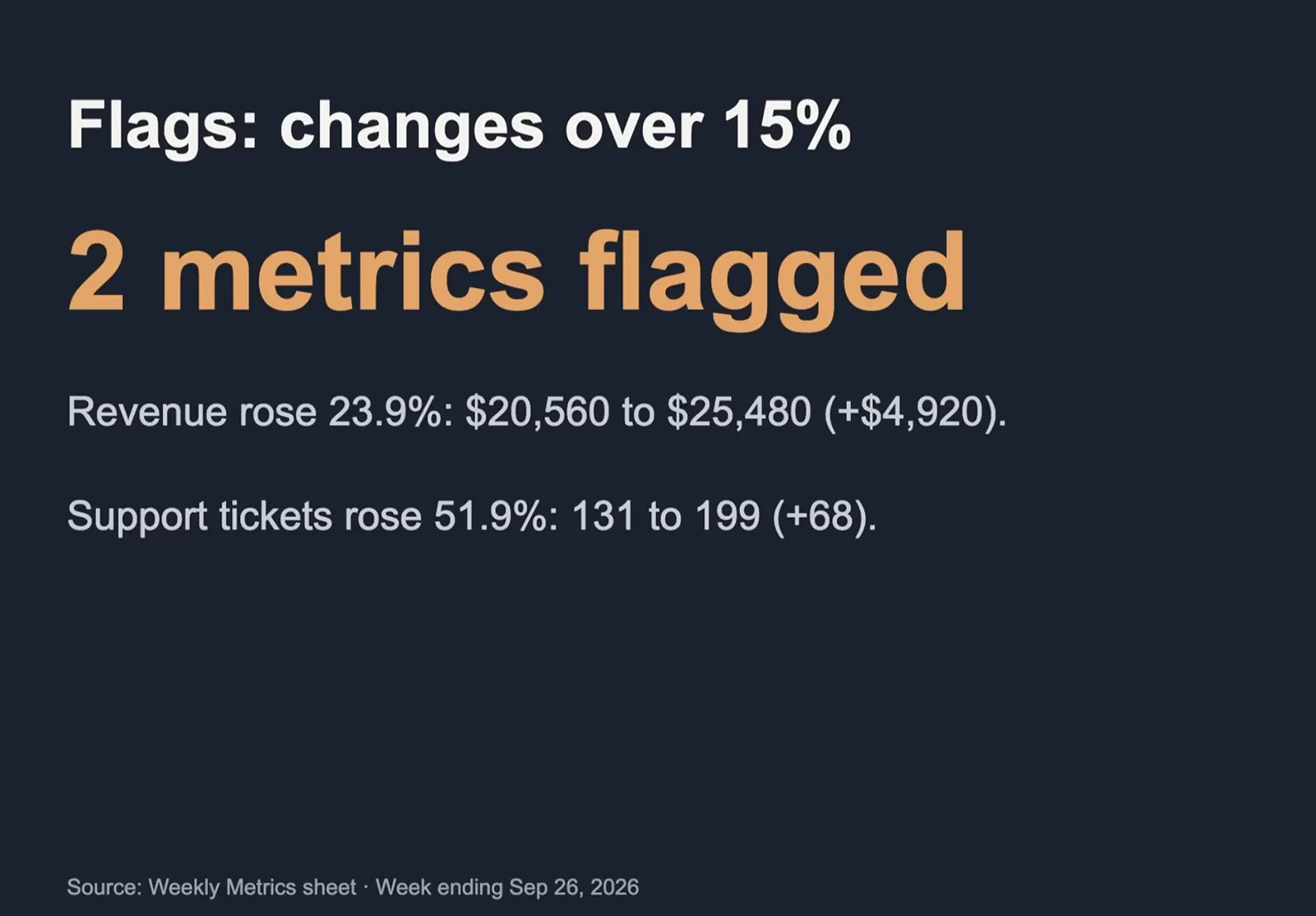
- Each flag has the before and after values.
- The source and the week are on the slide.
Your dot can also learn from files first and then keep watch for you.
Learn from my files, then keep watch
Pick Google Drive from the + menu so the request points at it.
My last five [REPORTS / SCRIPTS / BRIEFS] are in Google Drive. Read them to learn what I cover. Then keep an eye on [TOPICS]. When something worth my time comes up, research it and prepare a brief with sources and a rough outline for me to review. Don't publish anything without my sign-off.The job repeated in your dot's words, the five files it found, and a question: are those the right ones?
And it's good at spotting where two documents disagree.
Check two documents against each other
Compare [THE SIGNED OFFER] with [THE PROJECT BRIEFING] in my Drive. List anything that doesn't match: scope, price, dates, rounds of changes. Link both documents. Don't change either one.Each mismatch with the numbers from both documents, links to the two files, and an offer to draft a note to the other side.
#What your dot can and can't do in Drive
Outside the simulation, the same limits hold for every file.
| Job | Can your dot do it? |
|---|---|
| Find and read Docs, Sheets, Slides and other files | Yes, without asking, for files the connected account can open |
| Read your files when you haven't asked | Yes. It looks for ways to help, and that reading can't change anything |
| Edit a file | Yes. It asks first unless Drive is on Allow all actions |
| Share a file or change who can see it | Only after you say yes |
| Delete a file for good | Only with your confirmation, every time |
| Open files your Google account can't | No |
#Fixes
If Drive isn't behaving, find what you see in the left column.
| What you see | What to do |
|---|---|
| Your dot finds a file's name but can't say what's in it | Reconnect Drive and tick Select all on Google's list |
| Files are missing | You connected the wrong Google account. Connect the one that has them |
| "ChatGPT needs all requested permissions" | Click Try again, then tick Select all |
| Google Drive isn't on the Plugins page, or Google blocks the sign-in | On a work account, ask your ChatGPT workspace admin and your Google Workspace admin to allow it |
| It worked, then stopped | Look for a reconnect chip in the conversation, click it and sign in again |
#Check you've got it
One sort before you go.
Drive is set to Read-only actions. Sort each job: does your dot go ahead, or stop and ask you?
- Find last quarter's budget sheetFinding and reading change nothing.
- Compare two versions of a contractTwo reads, no change.
- Share a folder with a clientSharing waits for you at every level.
- Add a slide to a deck
- Summarize a 40-page document
- Update the figures in a SheetAn edit is a change, so it asks first at this level.
Goes ahead
Stops and asks you
Show the answer
Goes ahead: Find last quarter's budget sheet (Finding and reading change nothing.); Summarize a 40-page document; Compare two versions of a contract (Two reads, no change.)
Stops and asks you: Update the figures in a Sheet (An edit is a change, so it asks first at this level.); Add a slide to a deck; Share a folder with a client (Sharing waits for you at every level.)
Does connecting Drive also connect Gmail and Calendar?
Each Google app is its own plugin with its own permission level, even though one Google sign-in can cover several. Gmail and Google Calendar has those.
What happens to what it read if I disconnect Drive?
New reading stops. What your dot already learned stays in its memory until you delete the dot, and your files in Drive aren't touched. What your dot remembers.
Does OpenAI train on my files?
On Business, Enterprise and Edu plans, not by default. On personal plans it follows your Improve the model for everyone setting. What your dot can see.
- Rebuilt as a recipe page with a simulation, three recipes and real results.
- First published.
Get the Dots cheat sheet
One page with the essentials, plus new guides as they are published. Free.
You're in. Your cheat sheet is ready. Download the PDF
Sources
11
- OpenAI docs: Connect computers and apps to your dot learn.chatgpt.com
- OpenAI docs: Meet dots (the sales proposal example) learn.chatgpt.com
- OpenAI Help Center: Google Drive app and setup in ChatGPT help.openai.com
- OpenAI Help Center: Managing app permissions in ChatGPT help.openai.com
- OpenAI Help Center: Connecting and managing app accounts in ChatGPT help.openai.com
- OpenAI Help Center: Getting started with your dot help.openai.com
- OpenAI Help Center: Dots privacy, security, and safety FAQs help.openai.com
- OpenAI: How we build safety, security, and privacy into dots openai.com
- Skill Leap AI on YouTube: screenshot of a dot confirming Drive is connected youtube.com
- Zinho Automates on YouTube: the weekly deck update and its Flags slide youtube.com
- WPerfolg on YouTube: a dot comparing two documents in Drive youtube.com